Skip Navigation

Nushell

Members
0
Posts
24
Created
2 yr. ago

What is Nushell?

Nushell is a powerful shell and scripting language with strong typing, querying, and piping functionalities.

From the official documentation; Introduction:

The goal of this project is to take the Unix philosophy of shells, where pipes connect simple commands together, and bring it to the modern style of development. Thus, rather than being either a shell, or a programming language, Nushell connects both by bringing a rich programming language and a full-featured shell together into one package.

Nu takes cues from a lot of familiar territory: traditional shells like bash, object based shells like PowerShell, gradually typed languages like TypeScript, functional programming, systems programming, and more. But rather than trying to be a jack of all trades, Nu focuses its energy on doing a few things well:

  • Being a flexible cross-platform shell with a…

🌉 bridged from !nushell@programming.dev by Tidepoo

Simple Nushell Script To Always Disable Laptop Internal Monitor When Using AR Glasses

cross-posted from: https://lemmy.world/post/48010802

I created a simple Nushell script that will always disable the default/internal monitor(s) on your laptop or external display when using AR glasses. I find this useful for when using AR glasses such as the XReal One which allows you to change the mode from regular mode to ultra-wide mode and when doing this, it will act as your unplugging the XReal ones and plugging in XReal one again in a new mode, causing the other display to become enabled. To keep the laptop display always off, weather the laptop lid is either closed or open, this simple Nushell script will always disable the screen every X seconds (You can change it by changing the wait constant) Simply copy this script and create a new Nushell script such as disable-displays.nu, add it to your startup applications with the command of nu /path/to/disable-displays.nu and it will run in the background. You will need to run xrandr command with all of your displays enabled to get the names of the displays and change the constants values in the script accordingly. NOTE: This script may not work with a full Wayland setup and may only work on X11. Enjoy

 
# RUN xrandr TO GET THE NAMES OF THE DISPLAYS AND SET THE VARIABLES TO THESE NAMES
const ar_glasses_display = 'USB-C-0'
const displays = [
    'eDP',
    'HDMI-0'
]

const wait = 5

def is-ar-glasses-connected [] {
    return (xrandr | str contains $"($ar_glasses_display) connected")
}

def disable-display [display: string] {
    xrandr --output $display --off
}

def enable-display [display: string] {
    xrandr --output $display --auto
}

loop {
    if (is-ar-glasses-connected) {
        for current_display in $displays {
            disable-display $current_display
        }
    } else {
        for current_display in $displays {
            enable-display $current_display
        }
    }

    sleep ($wait * 1sec)
}

Linux: Run Nushell Scripts From File Manager

To be able to run Nushell scripts from your File Manager and have the terminal window of the running script not close when the script is finished executing or if the scripts exits, you can use these instructions to achieve this. This example is on Linux Mint using Nemo as a file manager and GNOME Terminal as a terminal app. • Create the following script on your system and store the file where ever you like... run-in-terminal.nu

 
def run-in-terminal [code: string] {
    # Using GNOME Terminal
    gnome-terminal -- nu -c ($code)
}

# The Nushell code that runs in the terminal
def get-terminal-code [script: string] {
    return $"
        try {
            nu ($script)

            print ''
            print ''
            print ''
            print 'Script finished executing'
        } catch {
            print ''
            print ''
            print ''
            print 'Script failed executing'
        }

        print ''

        # Must press enter to close terminal window
        input 'Press Enter to exit'
    "
}

def main [script:string] {
    run-in-terminal (get-terminal-code $script)
}

• Create the Nemo action file and in the file, replace /path/to/run-in-terminal.nu with the path to the run-in-terminal.nu file... ~/.local/share/nemo/actions/nushell.nemo_action

 
[Nemo Action]
Name=Run in Terminal
Comment=Execute script in Terminal
Exec=nu /path/to/run-in-terminal.nu %F
Icon-Name=terminal
Selection=Single
Extensions=nu;

Now simply right click on any Nushell script file (.nu) in Nemo and you will see an option Run In Terminal.

Nushell 0.101.0 | Nushell

• Simplified Startup Configuration • path self • chunk-by • term query • merge deep • WASM support (again) • sys net inclueds new columns mac and ip • raw string pattern matching • dates can now be added to durations • additional explore keybinds • version in startup banner • input --default • PowerShell script invocation on Windows • new introspection tools Breaking Changes: • ++ operator, stricter command signature parsing (resolves silent parse errors) • group-by now supports "groupers" (multiple criteria) • timeit • sys cpu • from csv and from tsv • std/iter scan • completion sorting in custom completers, import module naming with normalization • display_output hook • du flag changes • Code specific environment variables updated during source

www.nushell.sh

FizzBuzz in Nu - Rosetta Code, side-by-side Programming Language Solutions

I added two solutions to the Rosetta Code FizBuzz page in Nu. The one that was already there was quite confusing/non-intuitive to me; with string determination, and by index value fixups. I like the match solution because it's structurally obvious and demonstrates the record-field-value match and logical case matching:

 nu
1..100 | each {
  { x: $in, mod3: ($in mod 3), mod5: ($in mod 5), }
  | match $in {
    { mod3: 0, mod5: 0, } => 'FizzBuz',
    { mod3: 0, mod5: _, } => 'Fizz',
    { mod3: _, mod5: 0, } => 'Buzz',
                        _ => $in.x
  }
} | str join "\n"

Do you have alternative suggestions or improvements?

rosettacode.org

Fixup of Missing Markdown Date Front Matter From Git with Nushell

My website is implemented through Hugo, with content sources in Markdown. Metadata is added through a so-called "front matter" header within Markdown files. I noticed date metadata (front matter) was missing on content pages and consequently had 2001 on RSS feeds. I used Nushell to en-mass add page dates after-the-fact, with date values determined through Git.

 nu
# Determine pages with missing date front matter (may be missing pages that have `date = ` as content)
glob **/*.md | where {|x| $x | open | not ($in | str contains 'date = ') } | save missing.json

# Determine content creation dates through Git add authoring date
open missing.json | wrap path | upsert date {|x| git log '--follow' '--diff-filter=A' '--format=%ad' '--date=iso' '--' $x.path | into datetime } | save dates.json

# Prepend date TOML front matter to closing fence
open dates.json | each {|x| $x.path | open --raw | str replace "\r\n+++\r\n" $"\r\ndate = \"($x.date | format date '%Y-%m-%d %H:%M:%S')\"\r\n+++\r\n" | collect | save -f $x.path }

Example [inline] result/fixup:

 TOML
date = "2022-08-07 18:31:18"
+++

Some work details and manual cleanup (e.g. pages with resource front matter where the date declaration must be placed before them) omitted.

kcode.de

Nushell CLI command to download the highest-quality opus audio file through yt-dlp

Command dl opus to download highest quality audio as or into an opus file through yt-dlp. Add to config.nu:

 nu
# Download highest quality Opus audio as/into .opus file
def "dl opus" [url: string] {
    yt-dlp --extract-audio --audio-quality 0 --audio-format opus $"($url)"
}

Usage:

 nu
dl opus <url>

——— I have set up dl as an alias for yt-dlp via alias dl = yt-dlp. The def above adds an overlaying sub-command.

kcode.de

Starship v1.23.0 Offers Nushell Completions

Starship is a customizable prompt with support for multiple shells, including Nushell. Starship v1.23.0 includes:

completions: Offer Nushell completions (#6366) (df454d5)

——— The completions can be generated in the env.nu into an autoload dir:

 nu
starship completions nushell | save --force $'($nu.user-autoload-dirs | last)/starship-completions.nu'

——— I have a setup that generates env files only once per day, resulting in faster shell startup otherwise.

 nu
call-if-old $'($nu.user-autoload-dirs | last)/starship-completions.nu' {|filepath| starship completions nushell | save -f $filepath }

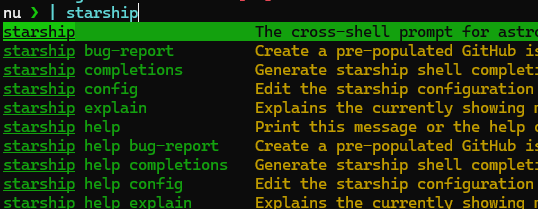
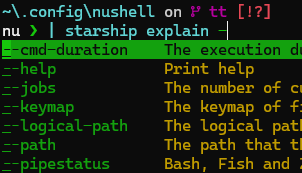
call-if-old is a command I defined. ——— Completions Demonstration: image image

github.com